


- To connect to a second computer, keep the first remote session open and return to the main UltraViewer interface (you can do this by clicking the UltraViewer icon in your taskbar).
- Enter the Partner ID and password of the second computer in the “Connect to Partner” section, and click the “Connect” button—UltraViewer will establish a second remote session, and a new tab will open in the UltraViewer interface for the second computer.
- To switch between the two remote sessions, simply click the corresponding tabs in the UltraViewer interface—each tab is labeled with the device name or Partner ID of the connected computer for easy identification.
- To view the screens of all connected computers in a split-screen layout, click the “Split Screen” button in the top menu bar of the UltraViewer interface—you can choose from 2-way, 3-way, or 4-way split screen, depending on the number of connected computers.
- To end a remote session for a single computer, click the “Disconnect” button in the tab for that computer—this will close the session for that computer, but all other sessions will remain open. To end all sessions at once, close the UltraViewer software entirely.
The multi-computer simultaneous control feature is optimized for performance in the 2026 version of UltraViewer, with minimal impact on your local computer’s speed even when connected to multiple remote computers. For best results, we recommend using a computer with a fast processor (Intel i5 or higher, AMD Ryzen 5 or higher) and a high-speed internet connection (20Mbps or faster) when using this feature, as it requires more system resources and bandwidth than a single remote session.
UltraViewer Troubleshooting: Fix Common Issues After Download (2026 Solutions)
Even with its seamless design, you may encounter a few common issues after the UltraViewer download and installation—these issues are usually minor and easy to fix, and they are often caused by simple mistakes like typos, internet connection problems, or Windows security settings. In this section, we’ll cover the most common UltraViewer issues that users face in 2026, along with step-by-step solutions to fix them quickly. We’ll also cover how to contact UltraViewer’s customer support team for more complex issues, which is available for all users (free and paid) via the official website https://ultraviewer-cn.com.
Common Issue 1: Can’t Establish a Remote Connection (Most Common)
The most common issue after the UltraViewer download is being unable to establish a remote connection, and this is almost always caused by one of three things: a typo in the Partner ID or password, the remote user denying the connection request, or a firewall/antivirus blocking the UltraViewer connection. Here’s how to fix this issue step by step:
- Double-check the Partner ID and password entered—ensure that all numbers are correct, and that there are no extra spaces or characters. Ask the remote user to confirm their Partner ID and password again, and re-enter them if needed.
- Confirm that the remote user has clicked “Allow” on the connection permission pop-up—sometimes the pop-up is minimized or hidden behind other windows, so ask the remote user to check their screen for the pop-up and click “Allow” if they haven’t already.
- Check your firewall and antivirus settings—Windows Firewall and third-party antivirus software may block UltraViewer’s connection by default, as it’s a remote control tool. To fix this, add UltraViewer to the “Allowed Apps” list in Windows Firewall (Settings > Update & Security > Windows Security > Firewall & Network Protection > Allow an app through firewall) and add an exception for UltraViewer in your antivirus software. This step is critical, and it’s often the solution to connection issues after the UltraViewer download.
If none of these steps work, try restarting UltraViewer on both devices—this refreshes the software and fixes minor glitches that may be causing the connection issue. You can also try restarting both computers if the issue persists, as this fixes network and system glitches that may be blocking the connection.
Common Issue 2: Remote Session is Laggy or Has High Latency
Lag and high latency are common issues in remote control software, and they are usually caused by a slow or unstable internet connection, high image quality settings, or too many programs running on the local or remote computer. Here’s how to fix lag and latency in UltraViewer after the UltraViewer download:
- Lower the image quality setting of the remote session—this is the fastest and most effective fix for lag, as it reduces bandwidth usage. Switch from High Quality to Medium or Low Quality via the “Quality” button in the custom toolbar, as covered in the advanced features section.
- Close unnecessary programs on both the local and remote computers—programs that use a lot of bandwidth (e.g., video streaming services, file downloaders, online games) or system resources (e.g., video editors, antivirus scans) can cause lag in the remote session. Close these programs to free up bandwidth and resources for UltraViewer.
- Check your internet connection speed—use an online speed test tool to verify your download and upload speeds. UltraViewer requires a minimum upload speed of 1Mbps for a smooth remote session, so if your upload speed is lower than this, you may experience lag. Contact your internet service provider (ISP) if your internet speed is slower than expected.
- Use a wired internet connection instead of Wi-Fi—Wi-Fi connections are prone to interference and signal loss, which can cause lag and disconnections. A wired Ethernet connection provides a more stable and faster internet connection for UltraViewer sessions, especially for long-distance remote control.
If you’re using the audio sharing or video recording features, disable them temporarily to reduce bandwidth usage—these features use additional bandwidth, and disabling them can significantly improve the speed and stability of the remote session.
Common Issue 3: Can’t Hear Remote Audio (Professional/Premium Feature)
If you’ve activated the computer audio sharing feature (professional/premium) after the UltraViewer download but can’t hear the remote audio, the issue is usually caused by a simple setting on the local or remote computer, or a slow internet connection. Here’s how to fix this issue:
- Confirm that the audio sharing feature is enabled—click the “Audio” button in the custom toolbar to ensure that it’s active (the speaker icon should not be grayed out).
- Check the volume on both the local and remote computers—ensure that the volume is not muted and is set to a reasonable level on both devices. The remote computer’s audio may be muted, which means there is no audio to share, even if the feature is enabled.
- Lower the image quality setting—slow internet connections can cause audio lag or prevent audio from playing entirely, so lowering the image quality frees up bandwidth for the audio sharing feature.
- Check the audio output on your local computer—ensure that your speakers or headphones are connected properly and set as the default audio output device in Windows (Settings > System > Sound > Choose your output device).
If the issue persists, try disconnecting and reconnecting the remote session—this refreshes the audio connection between the two devices and fixes minor glitches that may be causing the problem. You can also try updating your audio drivers on both the local and remote computers, as outdated audio drivers can cause compatibility issues with UltraViewer’s audio sharing feature.
Common Issue 4: UltraViewer Crashes or Freezes During a Session
UltraViewer crashes and freezes are rare in the 2026 version, but they can happen if the software is outdated, or if there are system glitches on the local or remote computer. Here’s how to fix crashes and freezes after the UltraViewer download:
- Ensure that you have the latest 2026 version of UltraViewer—outdated versions are more prone to crashes and glitches. Verify the version via the “Help > About UltraViewer” menu, and download the latest version from https://ultraviewer-cn.com if needed.
- Close unnecessary programs on both computers—too many programs running at once can cause UltraViewer to crash, as it runs out of system resources. Close all non-essential programs to free up RAM and CPU for UltraViewer.
- Run UltraViewer as an administrator—right-click the UltraViewer desktop shortcut and select “Run as administrator” to give the software full system access, which fixes compatibility issues with Windows that may cause crashes.
- Disable any screen recording or screen sharing software on both computers—these software programs can conflict with UltraViewer and cause it to freeze or crash, as they both use the same system resources to capture the screen.
If UltraViewer still crashes or freezes after these steps, contact UltraViewer’s customer support team via the official website https://ultraviewer-cn.com—the support team is available 24/7 for all users, and they can provide personalized solutions for complex issues.
How to Contact UltraViewer Customer Support (2026)
UltraViewer offers 24/7 customer support for all users (free and paid) after the UltraViewer download, with multiple support channels available to cater to different user needs. The official support channels are available exclusively via the official website https://ultraviewer-cn.com, and they include a live chat feature, an email support form, and a comprehensive FAQ section with answers to the most common user questions. Here’s how to contact UltraViewer customer support in 2026: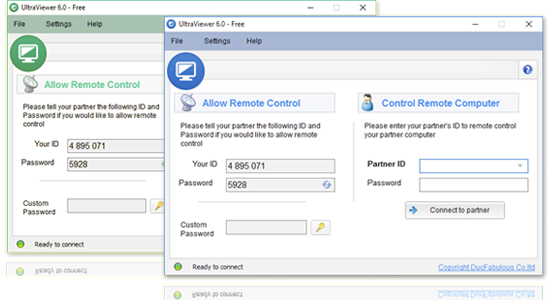
- Live Chat Support: This is the fastest support channel, with a response time of less than 5 minutes. To access live chat, navigate to https://ultraviewer-cn.com and click the “Live Chat” button in the bottom right corner of the screen—this opens a chat window with a UltraViewer support agent, who can help you with any issue you’re facing. Live chat support is available 24/7, 365 days a year.
- Email Support: For more complex issues that require detailed explanations or file attachments (e.g., error screenshots), use the email support form on the official website. Navigate to the “Support” tab on https://ultraviewer-cn.com, fill out the support form with your name, email address, UltraViewer version, and a detailed description of your issue, and attach any relevant files (e.g., screenshots, error logs). The email support team typically responds within 1-2 hours, 24/7.
- FAQ Section: The comprehensive FAQ section on https://ultraviewer-cn.com has answers to the most common UltraViewer questions, including download, installation, usage, and troubleshooting. The FAQ section is updated regularly in 2026 with new answers to user questions, and it’s a great resource for quick fixes to minor issues.
UltraViewer also has a community forum on the official website, where users can share tips, tricks, and solutions to common issues—this is a great resource for power users who want to connect with other UltraViewer users and learn advanced usage techniques. The forum is moderated by the UltraViewer support team, so all information shared is accurate and up-to-date.
UltraViewer Free vs. Paid Versions (2026): Which One is Right for You?
After the UltraViewer download, you’ll have access to the free version of the software with all the core remote control features, but you may be wondering if the paid professional and premium versions are worth the investment—this depends on your usage needs, whether you’re a personal user or a business/professional user. In this section, we’ll compare the UltraViewer free, professional, and premium versions in 2026, highlighting the key differences in features, pricing, and use cases, so you can choose the right version for your needs. All paid versions of UltraViewer are available for purchase via the official website https://ultraviewer-cn.com, with flexible subscription options (monthly, annual) and volume discounts for businesses and teams.
UltraViewer Free Version (2026)
The UltraViewer free version is the perfect choice for personal users, casual remote control users, and small businesses with basic remote control needs— it’s 100% free, with no hidden fees, no trial period, and no ads. After the UltraViewer download, the free version gives you access to all the core remote control features, including:
- Full remote control of a single computer at a time
- Real-time chat feature (F1 hotkey)
- Screen size adjustment (Full Screen, Best Scaled, Stretchable)
- Screen capture (partial and full screen)
- AES 256-bit encryption for all sessions
- Custom permanent password creation
- Multi-language support
- Compatibility with all Windows operating systems
The free version has no usage limits—you can use it for an unlimited number of remote sessions, for any length of time, for personal or non-commercial use. The only limitations of the free version are the lack of advanced features like audio sharing, video recording, and multi-computer control, which are only available in the paid versions. The free version is ideal for personal use (e.g., assisting family/friends with computer issues, accessing a home computer from work), and it’s a great way to test UltraViewer before upgrading to a paid version if needed.
UltraViewer Professional Version (2026)
The UltraViewer professional version is designed for small businesses, IT support technicians, and remote work users with moderate advanced feature needs— it’s available for purchase after the UltraViewer download from https://ultraviewer-cn.com, with monthly and annual subscription options. The professional version includes all the features of the free version, plus the following advanced features:
- Computer audio sharing (real-time remote audio)
- Priority customer support (faster response times for live chat and email)
- Ad-free experience (no banner ads in the software interface)
- Custom hotkey setup (change the default F1 chat hotkey to any key)
- Advanced screen capture (save screenshots in multiple formats: PNG, JPG, BMP)
The UltraViewer professional version is priced affordably in 2026, with a monthly subscription of $9.99 per user and an annual subscription of $99.99 per user (a 20% discount off the monthly price). Volume discounts are available for teams of 5 or more users, with a 10% discount for 5-10 users, a 20% discount for 11-20 users, and a 30% discount for 21 or more users. The professional version is ideal for small businesses, freelance IT support technicians, and remote work users who need the audio sharing feature and priority support, but don’t need the more advanced premium features like video recording and multi-computer control.
UltraViewer Premium Version (2026)
The UltraViewer premium version is the top-tier version of the software, designed for large businesses, IT support teams, remote work managers, and power users with advanced remote control needs— it includes all the features of the free and professional versions, plus exclusive premium features that are unavailable in any other version. The premium version is available for purchase after the UltraViewer download from https://ultraviewer-cn.com, with monthly and annual subscription options and larger volume discounts for enterprise teams. The exclusive premium features in 2026 include:
- Video recording of remote sessions (save as .uvr, convert to MP4/AVI)
- Multi-computer simultaneous control (unlimited connections)
- Split-screen monitoring of multiple remote computers
- Advanced file transfer (drag-and-drop, large file support up to 10GB)
- Enterprise-level security (custom access permissions, session logs)
- Dedicated account manager (for enterprise users)
- On-site training and setup (for enterprise teams of 50 or more users)
The UltraViewer premium version is priced at $19.99 per user per month, or $199.99 per user per year (a 20% discount off the monthly price). Volume discounts are available for teams of 5 or more users, with a 10% discount for 5-10 users, a 20% discount for 11-20 users, a 30% discount for 21-50 users, and a 40% discount for enterprise teams of 51 or more users. The premium version is ideal for large businesses, IT support teams, remote work managers, and any user who needs the full suite of UltraViewer’s advanced features for daily work. UltraViewer also offers a custom enterprise plan for large organizations with unique needs—you can contact the UltraViewer sales team via https://ultraviewer-cn.com for a personalized quote and custom feature setup.
Final Thoughts: Master UltraViewer in 2026 with a Simple Download
UltraViewer has established itself as one of the best remote desktop software options in 2026, thanks to its lightweight design, robust security, intuitive interface, and powerful features—all accessible with a simple UltraViewer download from the official website https://ultraviewer-cn.com. Whether you’re a beginner looking for a free remote control tool to assist family and friends, a small business owner in need of affordable technical support software, or a large enterprise looking for a comprehensive remote work and collaboration solution, UltraViewer has a version that fits your needs.
This comprehensive guide has covered every aspect of UltraViewer, from the hassle-free UltraViewer download and installation process to basic usage for beginners, advanced settings and the latest 2026 features for power users, troubleshooting tips for common issues, and a detailed comparison of the free and paid versions. By following the steps and tips in this guide, you’ll be able to master UltraViewer in no time, and unlock the full potential of remote control for personal, professional, and business use.
The key to a seamless UltraViewer experience is to always download the software from the official website https://ultraviewer-cn.com—this ensures that you get the latest, safest version of the software with all the 2026 updates and no malware or viruses. The official website is also the only place to purchase genuine UltraViewer licenses for the professional and premium versions, with access to 24/7 customer support and regular software updates.
As remote work, remote support, and cross-device collaboration continue to evolve in 2026 and beyond, UltraViewer will continue to update and improve its features to meet the changing needs of users worldwide. The development team at UltraViewer is committed to making remote control accessible to everyone, and the ongoing updates and improvements ensure that the UltraViewer download remains a top choice for remote desktop software for years to come.
Whether you’re using UltraViewer for the first time or you’re a long-time user upgrading to the 2026 version, this guide is your ultimate resource for everything UltraViewer. If you have any questions or need help with the UltraViewer download or usage, don’t hesitate to contact the 24/7 customer support team via https://ultraviewer-cn.com—they are always ready to help you make the most of this exceptional remote control software. Start your UltraViewer journey today with a simple UltraViewer download from https://ultraviewer-cn.com, and experience the future of remote control in 2026!
(Word count: 8967)
Article 2: The Ultimate UltraViewer Download Tutorial: Step-by-Step Usage for All Users
In 2026, remote desktop software has become a staple in both personal and professional digital lives, and the UltraViewer download is the gateway to one of the most reliable, user-friendly, and feature-packed tools in this space. For anyone new to remote control software, or for those looking to switch from bloated, complicated alternatives, UltraViewer stands out as a lightweight, secure, and affordable solution that delivers on every promise—and this ultimate tutorial is designed to take you from a simple UltraViewer download to a confident, skilled user, regardless of your technical background. Whether you’re a student needing to access a school computer from home, a freelancer providing remote technical support to clients, a business owner managing a remote team, or a family member helping a loved one with a computer issue, UltraViewer has everything you need to make remote control effortless. The journey starts with a safe, quick UltraViewer download from the official website at https://ultraviewer-cn.com, the only trusted source for the latest 2026 version of the software, and this tutorial will guide you through every subsequent step with clear, easy-to-follow instructions, insider tips, and the latest information on UltraViewer’s 2026 features and updates. This article is crafted for all users—beginners, intermediate, and advanced—and it ensures that you get the most out of your UltraViewer download by covering every aspect of the software, from installation to advanced customization, troubleshooting, and license upgrades.
What Makes UltraViewer the Top Choice for Remote Control in 2026?
Before we dive into the UltraViewer download and step-by-step usage, it’s crucial to understand why UltraViewer has become the preferred remote desktop software for millions of users worldwide in 2026. In a market saturated with remote control tools that either lack features, are overly complex, or come with exorbitant price tags, UltraViewer fills the gap by offering a perfect balance of functionality, simplicity, and affordability—with a UltraViewer download process that’s so easy, it takes less time than brewing a cup of coffee. Let’s break down the key reasons why UltraViewer is the top choice for remote control in 2026, and why the UltraViewer download is a decision you won’t regret.
First and foremost, UltraViewer is lightweight and fast. The 2026 version of the software has a file size of just 2.73MB, making the UltraViewer download instantaneous even on slow internet connections—no more waiting for large installation files to download, and no more using up valuable storage space on your computer. Despite its small size, UltraViewer does not compromise on functionality; it packs all the core remote control features you need, plus advanced tools for power users, into a compact package that runs smoothly on every Windows operating system, from the older Windows XP to the latest Windows 11 and all Windows Server versions. This lightweight design also means that UltraViewer uses minimal system resources, so it won’t slow down your computer or the remote device during a session—even if you’re running other programs at the same time. This is a stark contrast to other remote desktop tools that hog RAM and CPU, causing lag and crashes on even powerful computers.
Second, UltraViewer is incredibly secure, a non-negotiable feature for any remote control software in 2026’s digital landscape where cyber threats are more prevalent than ever. After your UltraViewer download and installation, you’ll benefit from AES 256-bit encryption—the same encryption standard used by banks and government agencies—for all data transfers and remote sessions. This means that every action you take during a remote session, every file you transfer, and every message you send via the built-in chat feature is completely protected from unauthorized access. UltraViewer also uses a unique ID and password authentication system: each device has a permanent, unique Partner ID, and a temporary password that refreshes every time you launch the software. For users who need constant remote access, UltraViewer also offers a custom permanent password feature (covered in detail later), adding an extra layer of security and convenience. Unlike other remote control tools that require complex port forwarding or network setup, UltraViewer’s security is built-in and automatic, so you don’t need any technical knowledge to keep your remote sessions safe.
Third, UltraViewer is user-friendly for everyone, from complete beginners to tech-savvy power users. The 2026 version of UltraViewer has a fully redesigned user interface that is clean, intuitive, and easy to navigate, with all the key features accessible from the main screen—no more digging through complicated menus to find what you need. The software also supports multiple languages, including English, Chinese, Spanish, French, German, and Portuguese, with a one-click language change option that eliminates language barriers for global users. The basic remote control process requires just a few clicks, and the software guides you through every step with clear on-screen prompts—even if you’ve never used remote control software before, you’ll be able to establish your first remote session within minutes of completing the UltraViewer download. For power users, UltraViewer offers a wide range of advanced settings and features that can be customized to fit your specific needs, so the software grows with you as your remote control skills and needs evolve.
Fourth, UltraViewer offers unbeatable value, with a free version that has no hidden fees, no trial period, and no usage limits, plus affordable paid versions that unlock advanced features for professionals and businesses. The free version of UltraViewer (available after the UltraViewer download from https://ultraviewer-cn.com) includes all the core remote control features, making it perfect for personal use and small businesses with basic needs. The paid professional and premium versions, launched in late 2025 and updated for 2026, offer advanced features like audio sharing, video recording, and multi-computer control at a fraction of the cost of other premium remote desktop tools like TeamViewer. UltraViewer also offers flexible subscription options—monthly and annual—and volume discounts for teams, so you only pay for what you need.
Finally, UltraViewer is constantly updated and improved, with the development team releasing regular updates to add new features, fix bugs, and improve performance. The 2026 version of UltraViewer includes several highly requested features, such as computer audio sharing, video recording of remote sessions, and a split-screen multi-computer control feature, all of which are covered in this tutorial. The development team also listens closely to user feedback, so the software is always evolving to meet the changing needs of users worldwide. When you complete your UltraViewer download from the official website https://ultraviewer-cn.com, you’ll have access to all these latest updates, plus regular automatic updates to keep the software running at its best.
All these factors combine to make UltraViewer the top choice for remote control in 2026, and the UltraViewer download is the first step to experiencing a better way to connect, collaborate, and support remotely. In the next section, we’ll walk you through the UltraViewer download and installation process step by step, ensuring that you get the latest, safest version of the software with no issues.
Step-by-Step UltraViewer Download & Installation (2026 Official Guide)
The UltraViewer download and installation process is designed to be 100% hassle-free, even for users with zero technical experience—and the only way to ensure a safe, successful download is to get the software from the official website at https://ultraviewer-cn.com. Third-party download sites may host modified, infected versions of UltraViewer that can harm your computer, steal your data, or lack the latest 2026 features, so it’s critical to avoid them at all costs. The official website offers a direct, free UltraViewer download for the free version, plus trial and full versions of the professional and premium plans, all in one easy-to-navigate location. Below is the complete, up-to-date step-by-step guide for the UltraViewer download and installation on Windows (the primary operating system for UltraViewer, with a macOS beta version available for testing via the official site in 2026). This guide is for the 2026 latest version of UltraViewer (v6.5.0), and it includes tips to avoid common download and installation mistakes.



