


In an era where remote work, technical support, and cross-location collaboration have become mainstream, a reliable and user-friendly remote control tool is no longer a luxury but a necessity. UltraViewer has emerged as a leading choice among millions of users worldwide, thanks to its lightweight design, stable connection, high-speed data transmission, and cost-effective features. However, many users encounter hurdles during the "UltraViewer download" process—such as struggling to find the official website, navigating confusing installation steps, or falling victim to untrusted third-party platforms. Additionally, beginners often feel overwhelmed by its functions after downloading, failing to maximize its potential. This comprehensive guide will walk you through the latest 2025 UltraViewer download process, step-by-step installation, and practical usage techniques, ensuring even beginners can master remote access efficiently and securely.
Why Choose Official UltraViewer Download? Three Core Guarantees for Safety and Experience
When it comes to downloading remote control software, "security" and "functionality" are non-negotiable priorities. The internet is flooded with third-party download platforms claiming to offer "cracked UltraViewer versions," "free premium access," or "one-click installation packages." However, these unofficial channels pose significant risks:
- Security Threats: Many third-party installers are bundled with malware, adware, or spyware. These malicious programs can steal sensitive data (such as login credentials, financial information, or business documents), hijack your device, or cause system crashes—especially devastating for businesses relying on remote technical support or data sharing.
- Incomplete Functions: Unofficial versions are often outdated, lacking 2025’s new features like AI-powered connection optimization, multi-device synchronization, and enhanced encryption protocols. They also fail to receive official updates, leading to compatibility issues with newer operating systems or frequent connection drops.
- Legal and Support Risks: Using cracked versions violates software copyright laws, exposing individuals and businesses to potential legal liabilities. Moreover, third-party platforms offer no technical support—leaving you stranded if you encounter download, installation, or usage problems.
In contrast, downloading UltraViewer from the official website https://ultraviewer-cn.com provides three unshakable guarantees:
- Security Compliance: The official installer is rigorously tested and certified, free of bundled software or malicious code. UltraViewer adheres to global data security standards (including GDPR and ISO 27001), with end-to-end encryption for all remote sessions and file transfers. Your privacy and sensitive data are fully protected.
- Full Functionality & Up-to-Date Versions: The official website syncs the latest 2025 version in real time, including algorithm upgrades, new feature additions, and bug fixes. You’ll always have access to the most stable and efficient iteration, ensuring seamless compatibility with Windows 11, macOS Sonoma, and the latest mobile operating systems.
- Dedicated Technical Support: Official download users can access 24/7 online customer service, a comprehensive help center with tutorials and FAQs, and even one-on-one guidance for complex issues. This level of support is unavailable on third-party platforms.
Whether you’re an individual user needing remote access to your home computer, a tech support professional assisting clients, or a business team collaborating across locations, always opt for the official UltraViewer download via https://ultraviewer-cn.com to avoid risks and unlock the full range of features.
2025 UltraViewer Download & Installation Step-by-Step Tutorial (Multi-Device Compatible)
Many beginners assume "UltraViewer download" and installation are complicated, but the process is straightforward—taking just 5 minutes to complete on Windows, Mac, iOS, or Android devices. Below is a detailed, beginner-friendly guide:
Desktop (Windows/Mac) Download & Installation
- Access the Official Website: Open your preferred browser (Chrome, Edge, Safari, etc.) and enter the official URL https://ultraviewer-cn.com. The website supports 10+ languages, including English, Chinese, Spanish, and French—simply switch the language in the top-right corner if needed.
- Locate the Download Entry: Click the prominent "Download" button in the top navigation bar or scroll down to the "Download Center" section. The page categorizes versions by "Windows," "Mac," "Mobile," and "Enterprise," making it easy to find the right one for your device.
- Initiate the Download:
- For Windows users: Select "UltraViewer for Windows (2025 Latest Version)"—the installer is approximately 3MB (ultra-lightweight, no long waits). Click "Download Now" to start.
- For Mac users: Choose "UltraViewer for Mac (macOS 10.15+ Compatible)"—the installer is around 5MB. Click "Download" and confirm the download when prompted by your browser.Thanks to the official website’s global distributed download nodes, the process takes just 10-30 seconds on a standard broadband connection.
- Complete the Installation:
- Windows: Locate the downloaded file (usually in the "Downloads" folder) and double-click to launch the installer. A pop-up window will appear—select your preferred language (default is English), agree to the terms of service, and choose an installation path (we recommend keeping the default path for stability). Click "Install" and wait 1-2 minutes for the process to finish.
- Mac: Open the downloaded .dmg file, drag the UltraViewer icon to the "Applications" folder. After copying, go to "System Settings > Privacy & Security" and allow "Apps from identified developers" (a standard macOS security step for official software).
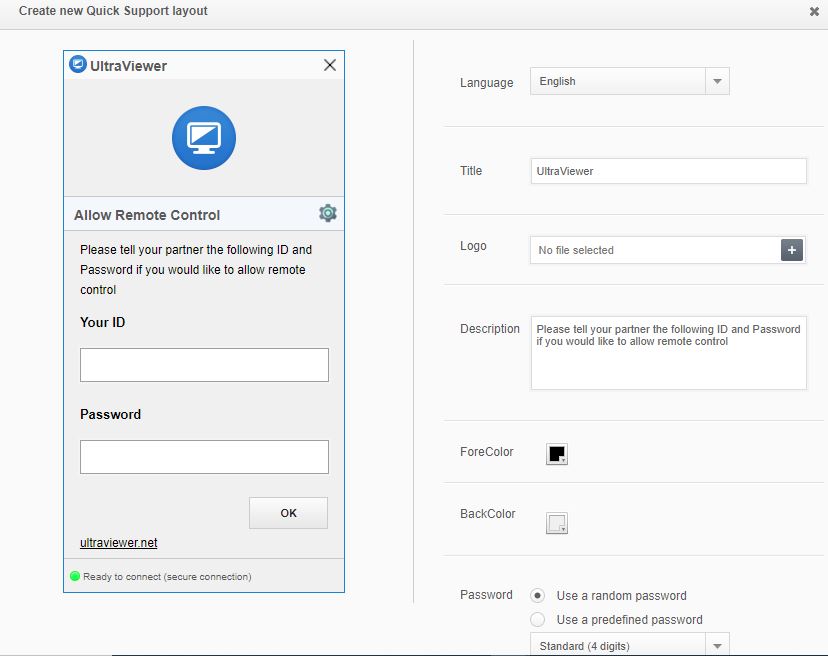
- Initial Setup: Launch UltraViewer after installation. You’ll see a main interface displaying your "ID" and "Password" (auto-generated for instant remote access). Log in with your UltraViewer account (create one for free via email or phone number) to enable cloud synchronization, history records, and cross-device access.
Mobile (iOS/Android) Download & Installation
Mobile devices allow you to control computers remotely on the go—perfect for urgent tasks or on-site technical support.
- iOS Users:
- Open the App Store, search for "UltraViewer Remote Control," and select the official app (developed by "UltraViewer Team").
- Tap "Get" and authenticate with Face ID, Touch ID, or your Apple ID password. The app will download and install automatically (approximately 12MB).
- Android Users:
- Option 1: Open the Google Play Store or a trusted app market (Huawei AppGallery, Xiaomi GetApps), search for "UltraViewer," and install the official version.
- Option 2: Visit the official website https://ultraviewer-cn.com on your mobile browser, tap "Mobile Download," and scan the Android QR code to download the APK. Enable "Install from unknown sources" in your phone’s settings (only safe for official APKs) and complete the installation.
- Mobile Initialization: Launch the app, log in with your UltraViewer account (same as desktop for synchronization), and grant necessary permissions (storage, camera, microphone—required for remote control and file transfer). The mobile interface is simplified, with large buttons for "Remote Control," "File Transfer," and "Live Support."
Enterprise Batch Download & Deployment
For businesses or teams needing to install UltraViewer on multiple devices, the enterprise batch deployment tool saves time and ensures consistency:
- Visit https://ultraviewer-cn.com and navigate to the "Enterprise Solutions" page. Contact the official sales team to obtain a free enterprise account and the MSI deployment package.
- IT administrators can push the MSI package to all company computers via the internal server—completing installation for 100+ devices in just 3 minutes.
- Configure unified settings (such as default access permissions, connection passwords, and data encryption rules) through the enterprise management console to ensure secure and standardized usage across the team.
Common Download & Installation Issues Troubleshooting
- Slow Download or Failure: This is usually due to network fluctuations. Disable VPNs, switch to a stable Wi-Fi connection, or refresh the official website and retry. If problems persist, contact official support for a dedicated high-speed download link.
- Permission Denied During Installation: Windows users—right-click the installer and select "Run as administrator." Mac users—log in with an administrator account. Android users—enable "Install from unknown sources" temporarily.
- Unable to Launch After Installation: Check if your device meets the system requirements (Windows 10+, macOS 10.15+, iOS 14+, Android 9+). Update your OS if outdated, then reinstall UltraViewer via the official website.
- Data Not Synchronizing Across Devices: Ensure all devices are logged into the same UltraViewer account. Enable "Cloud Sync" in the app settings to sync IDs, passwords, and connection history.
UltraViewer Core Features Usage Tutorial: From Basic Remote Access to Advanced Skills
After completing the UltraViewer download and installation, mastering its core features is key to boosting productivity. Below is a detailed breakdown of its most useful functions, tailored for beginners and advanced users alike:
Basic Remote Control: Instant Access to Any Device
UltraViewer’s primary function is simple, secure remote control—ideal for technical support, file retrieval, or remote work.
- Initiate a Remote Connection:
- To control another device: Ask the target device user to share their UltraViewer ID and password (displayed on the main interface). Enter these details in your UltraViewer’s "Partner ID" and "Password" fields, then click "Connect."
- To allow others to control your device: Share your own ID and password. You can set a permanent password in "Settings > Security" for convenience (recommended for trusted contacts).
- Remote Control Interface Navigation:
- The remote screen will appear in your UltraViewer window—you can resize it, switch to full-screen mode, or adjust the resolution for smoother control.
- Use the toolbar at the top of the window to access key functions:
- Mouse/Keyboard Control: Your local mouse and keyboard work seamlessly on the remote device—no additional setup required.
- Screen Lock: Prevent the remote user from viewing the screen during sensitive operations (e.g., entering passwords).
- Reboot Remote Device: Restart the remote computer directly from the toolbar (useful for troubleshooting).
- Disconnect: End the session securely with one click.
- Connection Quality Optimization:
- If the connection is laggy, click the "Speed" icon in the toolbar and select "Low Bandwidth Mode" to reduce data usage.
- Enable "Auto-Adjust Resolution" to match the remote screen to your local display, minimizing lag and improving responsiveness.
File Transfer: Fast, Secure Data Sharing
UltraViewer’s file transfer feature eliminates the need for email or cloud storage—transfer files directly between devices at speeds up to 10MB/s.
- Initiate File Transfer:
- During a remote session: Click the "File Transfer" icon in the toolbar to open the transfer window (split into "Local Files" and "Remote Files").
- Without a remote session: Enter the partner’s ID and password, then select "File Transfer Only" to send files without controlling the device.
- Transfer Steps:
- Select files/folders from your local device (drag-and-drop or click "Browse") and click "Send"—the progress bar will show real-time transfer status.
- Receive files: The remote user will receive a notification—they can accept the transfer and choose a save location.
- Batch Transfer: Select multiple files or entire folders for simultaneous transfer—ideal for sharing large datasets, software installers, or project files.
- File Transfer Security:
- All files are encrypted during transmission (AES-256 encryption), preventing interception or tampering.
- Set file size limits in "Settings > File Transfer" (default is 10GB per file) to manage bandwidth usage.
Screen Sharing & Collaboration: Real-Time Interaction
UltraViewer’s screen sharing feature is perfect for team meetings, training sessions, or collaborative problem-solving.
- Start Screen Sharing:
- During a remote session: Click the "Screen Share" icon in the toolbar—you can choose to share your entire screen or a specific application window.
- Invite Others to Share: Send the session link (generated in "Settings > Share Link") to colleagues or clients—they can join the share via a browser without installing UltraViewer.
- Collaboration Tools:
- Whiteboard: Use the built-in whiteboard to draw, type, or highlight key points on the shared screen—ideal for explaining concepts or marking errors.
- Voice Chat: Click the "Voice" icon to enable real-time audio communication (no need for separate video conferencing tools).
- Screenshot: Capture the shared screen with one click and save it locally or send it to the remote user.
- Screen Sharing Permissions:
- Control who can interact with the shared screen: In "Settings > Screen Share," enable "Allow Remote User to Draw" or "Disable Remote Interaction" as needed.
- Set a time limit for the share session to auto-end after a specific duration (useful for public training).
Advanced Features: Boost Efficiency for Professionals
UltraViewer offers advanced tools tailored for tech support teams, IT administrators, and businesses:
- Multi-Session Management:
- Professionals can control multiple devices simultaneously—click "New Session" in the toolbar to connect to additional devices. Switch between sessions via the tabbed interface for efficient multi-tasking.
- Remote Printing:
- Print documents from the remote device directly to your local printer: Click "Remote Print" in the toolbar, select your local printer, and adjust settings (paper size, number of copies) before printing.
- Auto-Response & Scripts:
- Create custom scripts for repetitive tasks (e.g., installing software, updating drivers) and run them on the remote device with one click.
- Set auto-response messages to inform remote users of your status (e.g., "I’m currently assisting another client—will be with you shortly").
- Security Settings:
- Enable "Two-Factor Authentication (2FA)" in "Settings > Security" to add an extra layer of protection for your account.
- Set "Access Whitelists" to restrict remote access to trusted IP addresses or devices—critical for business data security.
2025 UltraViewer Latest Update Highlights & Post-Download Optimization
UltraViewer’s development team releases 50+ updates annually to enhance performance and add new features. The 2025 version includes game-changing tools—optimize your settings after download to maximize efficiency:
2025 New Feature Highlights
- AI-Powered Connection Optimization: The new AI algorithm automatically detects network conditions (bandwidth, latency) and adjusts connection parameters for smoother remote control—even on unstable networks.
- Mobile-to-Mobile Remote Control: Previously limited to desktop-to-mobile, 2025 UltraViewer now supports remote control between iOS and Android devices—perfect for troubleshooting mobile apps or assisting friends/family.
- Cloud Recording: Record remote sessions and save them to UltraViewer’s cloud storage (free 5GB for all users) for later review—ideal for training purposes or compliance documentation.
- Multi-Language Voice Translation: During voice chats, enable real-time translation (supports 28 languages) to break down language barriers for international teams or clients.
- Enterprise Dashboard: Business users gain access to a centralized dashboard to monitor team activity, track session durations, and manage user permissions—simplifying IT administration.
Post-Download Optimization Tips
- Enable Auto-Updates: Go to "Settings > About UltraViewer" and check "Auto-Update" to ensure you receive the latest features and security patches automatically.
- Customize Hotkeys: In "Settings > Hotkeys," assign shortcuts for frequently used functions (e.g., Ctrl+Alt+D for disconnect, Ctrl+Alt+F for file transfer) to speed up operations.
- Adjust Display Settings: Disable "High-Resolution Mode" if you experience lag—switch to "Balanced Mode" for a mix of quality and performance.
- Manage Cloud Storage: Regularly back up important session recordings and transfer logs to your UltraViewer cloud storage. Upgrade to a premium plan for additional storage (up to 100GB).
- Test Connection Speed: Use the built-in "Speed Test" tool (in "Settings > Network") to check your connection quality and identify potential issues (e.g., slow Wi-Fi, high latency).
Practical Case Studies: How to Maximize Efficiency After UltraViewer Download
UltraViewer’s versatility makes it suitable for a wide range of scenarios—below are 2025 real-world case studies to inspire your usage:
Case 1: Technical Support for Small Businesses
Background: A small IT support firm with 5 technicians was struggling to assist clients efficiently—spending hours traveling to on-site locations or dealing with unreliable remote tools.After UltraViewer Download:
- Technicians use UltraViewer to connect to clients’ devices remotely, resolving 80% of issues (e.g., software errors, virus removal, network setup) without on-site visits.
- The file transfer feature allows quick deployment of troubleshooting tools or software updates—reducing average resolution time from 2 hours to 30 minutes.
- The enterprise dashboard helps managers track technician performance and ensure client satisfaction—resulting in a 40% increase in repeat business.
Case 2: Remote Work & Cross-Team Collaboration
Background: A marketing team spread across three countries needed a way to collaborate on design projects and presentations without delays from file-sharing tools.After UltraViewer Download:
- Designers share their screens to present work-in-progress, using the whiteboard tool to gather real-time feedback from team members.
- The multi-session feature allows project managers to monitor multiple designers’ progress simultaneously—streamlining workflow.
- Mobile-to-desktop control lets team members access work files from their phones while traveling, ensuring deadlines are met.
Case 3: Personal Use & Family Technical Assistance
Background: A college student wanted to help their parents troubleshoot their home computer (e.g., installing software, fixing printer issues) while studying abroad.After UltraViewer Download:
- The student remotely connects to their parents’ computer using UltraViewer’s simple ID/password system—no technical expertise required from the parents.
- The voice chat and screen sharing features make it easy to guide parents through steps, while the remote control function allows the student to fix issues directly.
- The lightweight design ensures the parents’ older computer runs smoothly without lag—avoiding frustration for both parties.
Common Questions (FAQ): Resolve UltraViewer Download & Usage Issues
1. Is UltraViewer Free? What’s the Difference Between Free and Premium Versions?
UltraViewer offers a free version and a premium plan (monthly/annual subscriptions). The free version includes basic remote control, file transfer (up to 2GB per file), and screen sharing—sufficient for personal use or small-scale technical support. The premium version ($9.99/month or $79.99/year) adds advanced features: unlimited file transfer size, cloud recording, multi-session management, enterprise dashboard access, and priority technical support. Businesses and professionals will benefit most from the premium plan, while casual users can rely on the free version.
2. Is UltraViewer Safe to Use? Will My Data Be Leaked?
Yes—UltraViewer is extremely safe. All remote sessions and file transfers are encrypted with AES-256 encryption (military-grade security). The software does not store your remote control history or files without permission, and the official version contains no malware or spyware. Additionally, features like access whitelists and 2FA add extra layers of protection against unauthorized access.
3. Can UltraViewer Work on Slow Internet Connections?
Yes—UltraViewer is optimized for low-bandwidth environments. The "Low Bandwidth Mode" reduces data usage by compressing the remote screen feed, while the AI-powered connection optimization adjusts parameters to minimize lag. Even on connections as slow as 1Mbps, you can perform basic remote control tasks (e.g., file retrieval, simple troubleshooting).
4. How Many Devices Can I Connect to Simultaneously?
The free version allows one active remote session at a time. The premium version supports up to 10 simultaneous sessions—ideal for tech support teams or managers overseeing multiple projects. Enterprise users can request custom plans for unlimited sessions.
5. Where Can I Find More Tutorials or Get Technical Support?
In addition to this guide, you can access:
- The official help center at https://ultraviewer-cn.com/support (includes video tutorials, FAQs, and step-by-step guides).
- 24/7 online chat support via the official website—available for both free and premium users.
- The UltraViewer community forum, where users share tips, tricks, and troubleshooting advice.
Conclusion: Start Your Efficient Remote Control Journey with Official UltraViewer Download
In 2025, remote work and cross-location collaboration are no longer optional—they’re essential. UltraViewer stands out as a reliable, user-friendly, and cost-effective remote control tool that meets the needs of individuals, small businesses, and large enterprises alike. By choosing the official UltraViewer download via https://ultraviewer-cn.com, you ensure safety, full functionality, and dedicated support—avoiding the risks of untrusted third-party platforms.
Whether you’re a beginner needing to assist family members, a professional providing technical support, or a team collaborating across borders, UltraViewer’s intuitive interface and powerful features will transform how you work. Follow this guide to download, install, and master UltraViewer, and unlock the full potential of remote access. With its 2025 updates and ongoing innovation, UltraViewer is more than just a tool—it’s your partner in efficient, secure, and seamless remote collaboration.
Visit https://ultraviewer-cn.com today to complete your UltraViewer download and take the first step toward a more productive remote work experience!
UltraViewer Download Ultimate Handbook: 2025 Latest Usage Tips & Secure Remote Control Techniques
In today’s fast-paced digital landscape, remote control software has become a cornerstone of productivity—enabling technical support, remote work, and global collaboration. Among the countless tools available, UltraViewer stands out for its simplicity, speed, and robust security features. It’s trusted by IT professionals, businesses, and individuals worldwide for its ability to connect devices seamlessly, regardless of location. However, many users face challenges with "UltraViewer download"—from finding the official source to navigating complex installation steps—and struggle to leverage its advanced features after setup. This ultimate handbook provides the latest 2025 insights, including secure download practices, expert usage tips, and real-world applications, helping you harness UltraViewer’s full power for personal or professional use.
The Critical Importance of Secure UltraViewer Download: Avoid Risks, Protect Data
Remote control software grants access to your device’s files, settings, and sensitive information—making the download source a critical security decision. Third-party platforms and "cracked" versions may seem convenient, but they expose you to significant risks:
- Malware Infections: Unofficial installers often bundle viruses, ransomware, or spyware that can steal your data, encrypt your files, or hijack your device. For businesses, this could lead to data breaches, financial losses, or reputational damage.
- Outdated & Unstable Software: Third-party versions are rarely updated, missing critical security patches and new features. This results in frequent crashes, connection failures, and compatibility issues with modern operating systems.
- No Technical Support: If you encounter problems with an unofficial version, you’ll have no recourse—no customer service, no troubleshooting guides, and no way to resolve issues that disrupt your workflow.
The only way to ensure a safe and reliable experience is to download UltraViewer from the official website https://ultraviewer-cn.com. Here’s why:
- Certified Safe Installers: Every file on the official website undergoes rigorous security scans to eliminate malware, adware, and other threats. The 2025 version includes enhanced security protocols to protect against emerging cyber risks.
- Latest Features & Updates: The official site provides instant access to the newest version, including 2025’s AI-driven tools, improved mobile compatibility, and enterprise-grade collaboration features. You’ll receive automatic updates to keep your software secure and functional.
- Comprehensive Support: Official users benefit from 24/7 customer service, detailed tutorials, and a knowledge base—ensuring you get help quickly when you need it.



