


After completing the initial UltraViewer download and mastering basic remote control functions, you may need to leverage more advanced features to meet complex remote work requirements. UltraViewer offers powerful advanced capabilities such as unattended access, audio sharing, and enhanced security settings that can significantly improve your remote collaboration efficiency. This tutorial focuses on these advanced features, guiding you through their setup and usage after a successful UltraViewer download. Whether you need to access your home computer from the office, provide 24/7 technical support to clients, or transfer large files securely, these advanced tips will help you maximize the value of UltraViewer.
Why Advanced Features Matter After UltraViewer Download
While basic remote control functions meet most casual users' needs, advanced features are essential for professional and frequent users. Unattended access allows you to connect to a remote computer without the need for someone to be present at the remote end, which is critical for accessing your own devices remotely or providing after-hours technical support. Audio sharing enables you to hear sounds from the remote computer, making it ideal for video editing, audio debugging, and online learning scenarios. Enhanced security settings ensure that your remote sessions and file transfers remain secure, protecting sensitive data from unauthorized access. All these features are available after a simple UltraViewer download and proper configuration, making UltraViewer a versatile tool for both personal and business use.
Before exploring advanced features, ensure you have the latest version of UltraViewer installed. The latest version (6.6.124) includes bug fixes and performance improvements for advanced features, so it's recommended to check for updates regularly. To update UltraViewer, open the software, go to Settings > About, and click "Check for updates". If an update is available, follow the prompts to complete the update (this may require a fresh UltraViewer download of the latest version).
Setting Up Unattended Access After UltraViewer Download
What is Unattended Access?
Unattended access is a feature that allows you to connect to a remote computer automatically without the need for the remote user to manually accept the connection or provide a temporary password. This is particularly useful for accessing your own computers (e.g., home PC from work) or managing client devices for ongoing technical support. To use unattended access, you need to configure the remote computer (host) after UltraViewer download and installation.
Step-by-Step Unattended Access Configuration
1. Ensure UltraViewer is installed and running on both the host computer (the one you want to access remotely) and the local computer (the one you will use to connect). Both computers must have completed the UltraViewer download from the official website.
2. On the host computer, open UltraViewer and go to the "Unattended Access" section (located below "Your ID" and "Password").
3. Check the box "Run UltraViewer with Windows" to ensure UltraViewer starts automatically when the host computer boots up. This is essential for unattended access, as it ensures the software is running even if the host computer is restarted.
4. Click the golden "Key" icon next to the unattended access settings to set a permanent password. This password will be used to connect to the host computer remotely, so choose a strong and unique password (combination of letters, numbers, and special characters) to enhance security.
5. Confirm the permanent password and click "OK" to save the settings. The host computer is now configured for unattended access.
6. On the local computer, open UltraViewer, enter the host computer's "Your ID" (this ID is permanent and does not change) and the permanent unattended access password you just set in the "Partner ID" and "Password" fields.
7. Click "Connect to partner" to establish the unattended remote connection. You will now be able to control the host computer without any manual intervention from the remote end.
Optional Advanced Setting: For added convenience, you can enable the "Prevent Windows from going to sleep" option on the host computer (requires UltraViewer Pro license). This ensures the host computer does not enter sleep mode, which would disrupt the remote connection.
Securing Unattended Access
While unattended access is convenient, it also poses security risks if not properly secured. Here are some tips to enhance the security of your unattended access sessions after UltraViewer download:
1. Use a Strong Permanent Password: Avoid using simple passwords like "123456" or "password". Choose a long password with a mix of uppercase and lowercase letters, numbers, and special characters.
2. Regularly Change the Password: Periodically update the permanent unattended access password to reduce the risk of unauthorized access.
3. Limit Access to Trusted Devices: Use UltraViewer's "Access Control" settings (available in Pro version) to restrict unattended access to specific local computer IDs. This ensures only your authorized devices can connect to the host computer.
4. Enable Two-Factor Authentication (2FA): If available, enable 2FA for UltraViewer access to add an extra layer of security. This requires you to enter a verification code sent to your mobile device in addition to the password.
Configuring Audio Sharing After UltraViewer Download
Overview of Audio Sharing Feature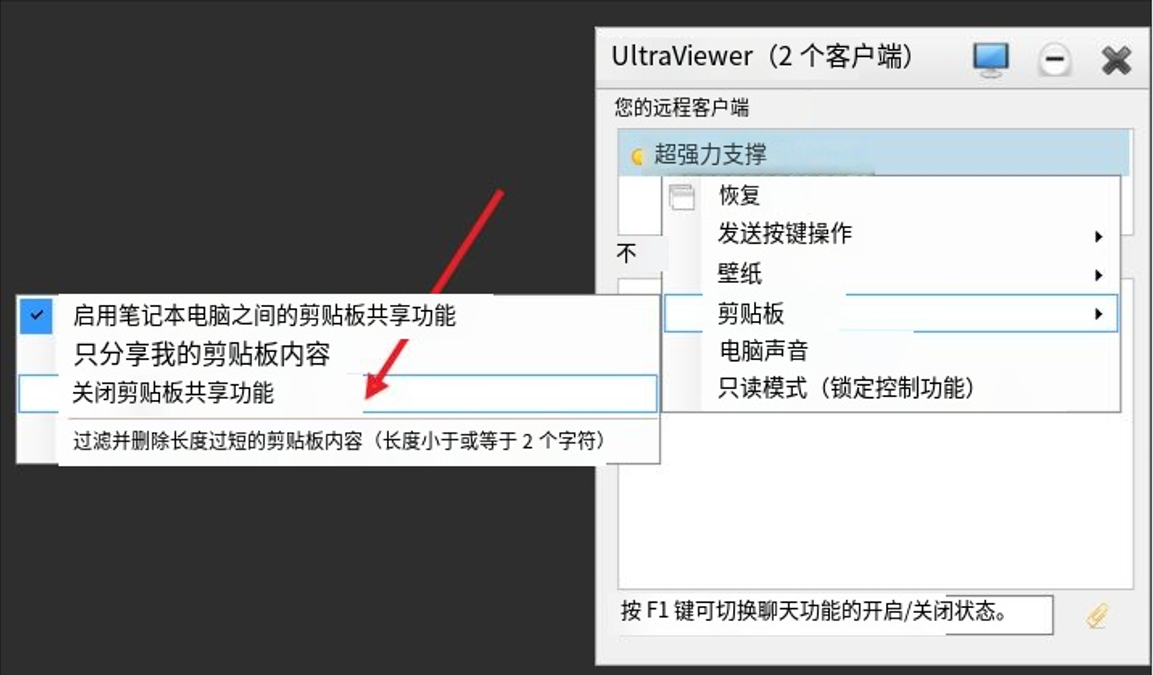
UltraViewer's audio sharing feature (available in Pro version) allows you to hear sounds from the remote computer during a remote session. This is particularly useful for scenarios such as video editing (to check audio levels), audio debugging (to identify sound issues on the remote computer), online learning (to listen to lectures on the remote computer), and remote presentations with audio. To use audio sharing, both the local and remote computers must have UltraViewer version 6.5 or higher installed, so ensure you have the latest version via UltraViewer download from the official website.
Step-by-Step Audio Sharing Setup
1. Ensure both the local and remote computers are running UltraViewer version 6.5 or higher. To check the version, go to Settings > About in the UltraViewer interface.
2. Establish a remote connection between the two computers using the standard connection process (enter Partner ID and Password, click "Connect to partner").
3. On the local computer's UltraViewer session toolbar, click "Settings" (gear icon) and select "Options".
4. In the Options window, select the "Remote Control" tab.
5. Check the box "On content computer sound" to enable audio sharing. Click "OK" to save the settings.
6. You will now be able to hear sounds from the remote computer. To adjust the volume, use the volume controls on your local computer.
Note: For audio sharing to work properly, both computers must have .NET Framework 3.5 or higher installed (Windows 7, 8, 10, and 11 come with .NET Framework pre-installed, so no additional installation is typically required). If you encounter audio issues, ensure the remote computer's audio is not muted and the speakers/headphones are working properly.
Advanced File Transfer Tips After UltraViewer Download
Batch File Transfer and Large File Handling
While basic file transfer is straightforward, UltraViewer offers advanced file transfer capabilities to handle large files and batch transfers efficiently. Here are some tips to optimize your file transfer experience:
1. Batch Transfer Multiple Files: Instead of transferring files one by one, select multiple files or an entire folder in the file transfer window. Hold the Ctrl key to select individual files or the Shift key to select a range of files, then click "Send" or "Receive" to transfer them all at once.
2. Compress Large Files: For very large files (1 GB or more), compress them into a ZIP or RAR archive before transferring. This reduces the file size, speeds up the transfer, and reduces the risk of transfer failure due to network interruptions.
3. Resume Interrupted Transfers: If a file transfer is interrupted due to network issues, UltraViewer will automatically resume the transfer from where it left off when the connection is restored. This eliminates the need to restart the transfer from the beginning.
4. Use Direct Peer-to-Peer Transfer: UltraViewer uses a peer-to-peer (P2P) network structure for file transfers, which ensures direct communication between the two computers without passing through intermediate servers. This results in faster transfer speeds and better security for sensitive files.
File Transfer Security Best Practices
Security is crucial when transferring sensitive files via remote desktop software. After UltraViewer download, follow these best practices to ensure secure file transfers:
1. Use Encrypted Transfers: UltraViewer uses 128-bit SSL encryption via the TLS protocol for all file transfers, ensuring that data is encrypted during transmission. This prevents unauthorized parties from intercepting and reading the files.
2. Verify File Integrity: After transferring important files, verify their integrity by checking the file size and hash value (MD5 or SHA-256) on both the local and remote computers. This ensures the files were not corrupted during transfer.
3. Avoid Transferring Sensitive Data on Public Networks: When transferring sensitive files, use a secure private network (e.g., home or office Wi-Fi) instead of public Wi-Fi networks (e.g., coffee shops, airports), which are more vulnerable to interception.
Troubleshooting Advanced UltraViewer Features
Unattended Access Not Working
If unattended access is not working after configuration, try the following solutions:
1. Check UltraViewer Startup Settings: Ensure the "Run UltraViewer with Windows" option is enabled on the host computer. If not, the software will not start automatically, and unattended access will fail.
2. Verify the Permanent Password: Double-check that you are using the correct permanent unattended access password. If you have forgotten the password, go to the host computer, open UltraViewer, and reset the password via the golden "Key" icon.
3. Check for Windows Updates: Outdated Windows operating systems may cause compatibility issues with UltraViewer's unattended access feature. Install all available Windows updates on the host computer and try again.
Audio Sharing Not Functioning
If you cannot hear audio from the remote computer after enabling audio sharing, try these troubleshooting steps:
1. Update UltraViewer to the Latest Version: Audio sharing requires UltraViewer version 6.5 or higher. Perform an UltraViewer download of the latest version and update both the local and remote computers.
2. Check Audio Settings on the Remote Computer: Ensure the remote computer's audio is not muted, and the volume is turned up. Test the audio on the remote computer by playing a sound locally to confirm it is working.
3. Verify .NET Framework Installation: Ensure both computers have .NET Framework 3.5 or higher installed. To check this, go to Control Panel > Programs > Turn Windows features on or off, and verify that .NET Framework 3.5 (includes .NET 2.0 and 3.0) is enabled.
Conclusion
By mastering the advanced features of UltraViewer after a successful UltraViewer download, you can significantly enhance your remote work efficiency and versatility. Unattended access allows you to connect to remote computers anytime, anywhere, without manual intervention. Audio sharing expands the range of tasks you can perform remotely, from audio editing to online learning. Advanced file transfer tips ensure fast, secure, and efficient transfer of large and multiple files. Remember to follow security best practices to protect your remote sessions and data, and always use the latest version of UltraViewer by regularly checking for updates via the official UltraViewer download page.
Whether you are a professional IT technician providing remote support, a remote worker accessing office resources, or a casual user helping family members with computer issues, these advanced UltraViewer tips will help you unlock the full potential of the software. With its lightweight design, intuitive interface, and powerful advanced features, UltraViewer is a reliable and cost-effective solution for all your remote desktop needs.



