


Step-by-Step UltraViewer Download & Usage Tutorial: Unattended Access + Error Fixes for 2025
Remote desktop software has become an essential tool for individuals and businesses alike, enabling seamless access to computers from anywhere in the world. UltraViewer has gained widespread popularity for its simplicity, reliability, and cost-effectiveness, offering a free alternative to premium tools without compromising on functionality. The 2025 updates have further enhanced its capabilities, making it even more versatile for remote work, technical support, and personal use. To leverage these improvements, a proper UltraViewer download and setup are essential. This detailed tutorial will guide you through the entire process—from finding the official UltraViewer download link to mastering advanced features like unattended access, troubleshooting common errors, and optimizing performance. Whether you’re a first-time user or looking to upgrade to the latest version, this guide ensures you get the most out of UltraViewer in 2025.
## Understanding UltraViewer: Key Benefits and 2025 Updates
Before proceeding with UltraViewer download, it’s important to understand why this tool stands out in a crowded market. UltraViewer is a lightweight remote desktop application that allows users to control another computer remotely, share files, and communicate via text chat—all with minimal setup. Unlike some heavyweight alternatives, it consumes little system resources, making it suitable for both high-performance PCs and older devices.
The 2025 updates to UltraViewer have addressed user feedback and introduced several game-changing features:
- **Enhanced security**: 128-bit AES SSL encryption for all data transfers, captcha verification, and anti-brute-force protection to safeguard against unauthorized access.
- **Improved functionality**: Microphone support for voice communication, cross-client copy-paste between multiple remote PCs, and fast monitor switching for multi-display setups.
- **Bug fixes**: Resolved issues with DPI scaling, multiple instance errors on low-RAM devices, and automatic startup after remote updates.
- **Language support**: Updated translations for Croatian, Turkish, Swedish, and Indonesian, in addition to existing support for over 20 languages.
- **Stable connections**: Parallel server architecture ensures connections remain stable even if one server goes down, reducing downtime for critical tasks.
These updates make UltraViewer a top choice for a wide range of users: IT professionals providing remote support, freelancers collaborating with clients, students accessing school computers from home, and families helping each other with tech issues. The free version includes all core features, while the software’s intuitive design means no technical expertise is required to get started—making UltraViewer download a smart choice for both beginners and advanced users.
## Official UltraViewer Download: Avoiding Risks and Choosing the Right Version
The first and most crucial step in using UltraViewer is to complete a safe and legitimate UltraViewer download. With the rise of fake software downloads containing malware, it’s imperative to use only official channels to protect your device and data. The primary source for UltraViewer download is the official website (https://www.ultraviewer.net/en/download.html), which hosts the latest stable version 6.6.124 as of 2025.
On the official download page, you’ll find a clear and prominent “Download UltraViewer” button that directs you to the setup file. The file is named UltraViewer_setup_6.6.124_en.exe and is approximately 5MB in size, ensuring a quick download even with limited bandwidth. For enterprise users or those who prefer using package managers, UltraViewer is also available on Chocolatey Community, though the official website remains the most reliable source for individual users.
It’s important to avoid third-party download sites, as they may offer outdated versions or modified installers bundled with adware, spyware, or viruses. These versions can compromise your computer’s security, expose sensitive data, or cause the software to malfunction. Additionally, beta versions (such as 6.1.18) are sometimes available for testing on the official blog, but these are not recommended for daily use due to potential bugs.
When selecting the version for UltraViewer download, consider your operating system:
- **Windows 7/8**: Use the compatible version available on the official site (works with both 32-bit and 64-bit systems).
- **Windows 10/11**: Download the latest version 6.6.124, which is optimized for these operating systems and fixes previous compatibility issues.
- **macOS**: Currently, UltraViewer does not support macOS, but the developer has stated plans to release a macOS version in the future. For Mac users, consider alternative tools until the macOS version is available.
After initiating the UltraViewer download, wait for the setup file to finish downloading. Do not interrupt the process, as this can corrupt the file and lead to installation errors. Once downloaded, proceed to the installation step, ensuring your antivirus software does not block the setup file (you may need to add an exception for UltraViewer if prompted).
## Installation Guide: Step-by-Step for Error-Free Setup
The UltraViewer installation process is designed to be simple and straightforward, even for users with limited technical knowledge. Follow these steps to ensure a smooth setup:
1. Locate the downloaded setup file (UltraViewer_setup_6.6.124_en.exe) in your downloads folder. Double-click the file to launch the installation wizard.
2. The wizard will prompt you to select your preferred language. Choose from options like English, French, German, Spanish, Japanese, and more, then click “OK.”
3. Read the end-user license agreement carefully and click “I Agree” to proceed.
4. Select the installation directory. The default path is “C:\Program Files (x86)\UltraViewer,” but you can click “Browse” to choose a different folder if needed.
5. Choose additional tasks:
- Create a desktop shortcut (recommended for quick access).
- Add UltraViewer to the Start menu.
- Associate UltraViewer with remote control file types (optional).
6. Click “Install” to begin the installation. The process will take 1-2 minutes, depending on your computer’s speed.
7. Once the installation is complete, click “Finish” to launch UltraViewer. You can also select the “Launch UltraViewer now” option before clicking “Finish” to open the software immediately.
Common installation errors and their fixes:
- **Error code 1072**: This occurs when UltraViewer_service.exe is running in the background. Open Task Manager (Ctrl + Shift + Esc), find UltraViewer_service.exe in the “Details” tab, click “End Task,” and restart the installation.
- **ActiveX component error**: Temporarily disable security software that may be blocking the installation, then retry.
- **Setup restart requirement**: The latest version fixes the issue where remote updates required a system restart, but if prompted, save your work and restart your computer to complete the installation.
After installation, it’s a good idea to check for updates immediately. While the UltraViewer download includes the latest version, occasional minor updates may be released shortly after. To check for updates, open UltraViewer, go to “Help” > “Check for updates,” and follow the prompts to install any available updates.
## Mastering Basic Functions: Remote Connection and File Transfer
Once UltraViewer is installed, you’re ready to start using its core features. The interface is intuitive, with two main sections: “Your ID/Password” and “Partner ID/Password.” Here’s how to master basic functions: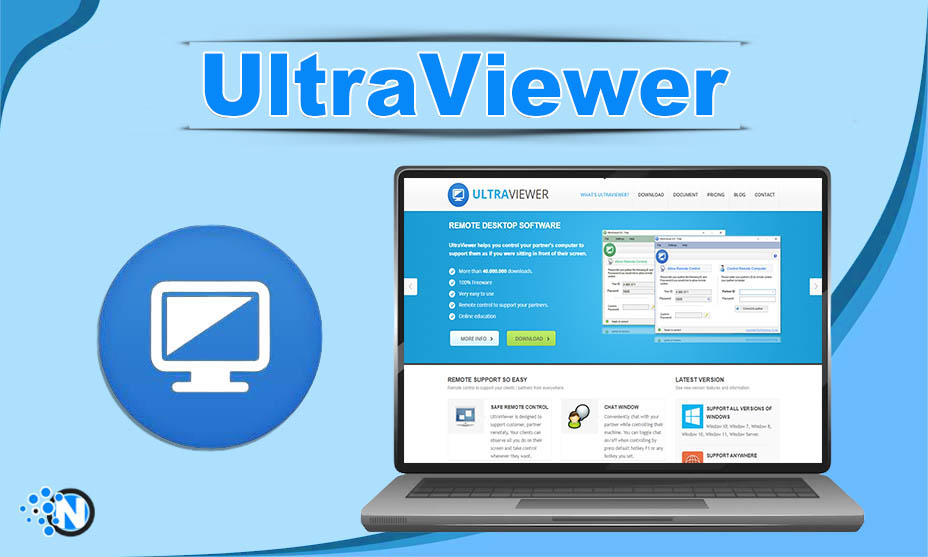 ### Establishing a Remote Connection
1. Open UltraViewer on your computer. The left panel will display your unique ID and a randomly generated password (minimum 5 digits). Share this ID and password with the person whose computer you want to control, or ask them for their ID and password to control theirs.
2. To control another computer, enter the partner’s ID and password in the right panel and click “Connect.” The partner will receive a pop-up prompt asking for permission to allow the connection. Once they click “Allow,” the remote session will begin.
3. During the session, you can control the remote computer’s mouse and keyboard as if you were sitting in front of it. The remote user will see your cursor movements and actions in real-time.
4. To end the session, click the “X” button in the top-right corner of the UltraViewer window or click “Disconnect” in the control panel.
### File Transfer
Transferring files between your local computer and the remote device is simple with UltraViewer:
1. During a remote session, click the “File Transfer” button in the UltraViewer control panel (located at the top of the remote screen).
2. A file explorer window will open, showing both your local files (left) and the remote computer’s files (right).
3. To send a file, select it from your local files and click “Send” or drag and drop it to the remote files panel.
4. To receive a file, select it from the remote files panel and click “Receive” or drag and drop it to your local files panel.
5. You can also transfer multiple files or entire folders at once, and the progress bar will show the status of the transfer.
### Text Chat
Communication is key during remote sessions, and UltraViewer’s built-in chat feature makes it easy to stay in touch:
1. Click the “Chat” button in the control panel to open the chat window.
2. Type your message in the input box and press Enter to send it.
3. The remote user will receive the message in their UltraViewer chat window and can reply directly.
4. The chat feature works even on the Winlogon screen, allowing you to communicate with the remote user before they log into their computer.
## Advanced Feature: Unattended Access Setup
One of the most useful features of UltraViewer is unattended access, which allows you to connect to a remote computer without the need for someone to grant permission. This is ideal for accessing your own computer while traveling, managing servers, or providing ongoing support to clients. Here’s how to set it up after UltraViewer download:
1. Open UltraViewer on the computer you want to access remotely.
2. Go to “Settings” (the gear icon in the top-right corner) and select “Options.”
3. In the “Access” tab, tick the box next to “Run UltraViewer with Windows.” This ensures UltraViewer starts automatically when the computer boots up.
4. Set a private custom password by clicking “Set password” under the “Unattended access” section. Choose a strong password (6-8 digits/characters is recommended for security) and confirm it.
5. Click “OK” to save the settings. The private password will replace the random generated password for unattended access.
6. To connect to the computer remotely, open UltraViewer on your local device, enter the remote computer’s ID and your custom private password, and click “Connect.” You will be connected immediately without needing the remote user’s approval.
Additional tips for unattended access:
- Regularly update your private password to enhance security.
- Enable the “Minimize to system tray” option in the “Security” tab to prevent UltraViewer from being closed accidentally.
- Use the “Turn off remote monitor” feature to protect privacy when accessing the computer in public places.
## Troubleshooting Common Usage Errors
Even with a successful UltraViewer download and installation, you may encounter issues during use. Here are solutions to the most frequent problems:
### Cannot Get ID or Connect to Server
- Ensure you have the latest version of UltraViewer (update via “Help” > “Check for updates”).
- Go to “Settings” > “Options” and change the connect port to 2112. Restart UltraViewer and try again.
- Check your firewall settings to ensure port 2112 is not blocked and UltraViewer_desktop.exe is allowed through.
- Disable proxy settings or IP spoofing software, as these can interfere with the connection.
### Connection Is Unstable or Disconnects Frequently
- Check your internet connection speed (a minimum of 1Mbps is recommended for smooth remote control).
- Close bandwidth-heavy applications like video streaming services or large file downloads during the remote session.
- Ensure both computers have version 6.6.124 installed, as older versions may have compatibility issues.
- The parallel server model in the latest version helps stabilize connections, but if disconnections persist, contact your internet service provider to resolve network issues.
### Mouse or Keyboard Input Not Working
- Ensure the remote user has not accidentally locked their computer (use the Ctrl + Alt + Del feature to unlock it).
- Check if the remote computer’s mouse or keyboard is physically disconnected (you can ask the remote user to verify).
- Restart the remote UltraViewer application by clicking “Restart” in the control panel.
### UltraViewer Does Not Start with Windows
- Right-click the UltraViewer desktop shortcut and select “Run as administrator.”
- Go to “Settings” > “Options” > “Access” and re-enable the “Run UltraViewer with Windows” option.
- Restart your computer to apply the changes. If the issue persists, reinstall UltraViewer using the official download.
## Optimizing UltraViewer Performance
To get the best experience with UltraViewer after download, follow these performance optimization tips:
- **Adjust screen resolution**: Lower the remote screen resolution if you have a slow internet connection to reduce latency.
- **Disable unnecessary features**: Turn off microphone support or file transfer if you don’t need them during the session.
- **Close background applications**: Close non-essential applications on both the local and remote computers to free up system resources.
- **Use full-screen mode**: For better visibility, switch to full-screen mode during the remote session by pressing F11.
- **Enable hardware acceleration**: If your computer supports it, enable hardware acceleration in the “Display” settings to improve video quality and reduce lag.
Regularly updating UltraViewer is also crucial for performance and security. The software will notify you when updates are available, but you can also check manually via “Help” > “Check for updates.” Updates often include performance improvements, bug fixes, and new features that enhance the user experience.
## Conclusion: Unlocking the Full Potential of UltraViewer in 2025
UltraViewer’s 2025 updates have transformed it into a more powerful, secure, and user-friendly remote desktop tool. From the simple UltraViewer download process to the advanced unattended access feature, it offers everything you need for seamless remote control, file sharing, and collaboration. Whether you’re a professional needing to support clients remotely, a student accessing school resources, or a family member helping a loved one with their computer, UltraViewer provides a reliable and cost-effective solution.
By following this tutorial, you’ve learned how to safely download UltraViewer from the official channel, install it without errors, master basic and advanced features, troubleshoot common issues, and optimize performance. The latest version 6.6.124’s security enhancements, functional upgrades, and bug fixes ensure a smooth and secure remote experience, making it a top choice for users worldwide.
In a world where remote work and connectivity are more important than ever, UltraViewer stands out as a practical and trustworthy tool. With its lightweight design, stable connections, and comprehensive features, it’s no wonder millions of users rely on UltraViewer for their remote control needs. Complete your UltraViewer download today and experience the convenience of seamless remote access—whether for work, study, or personal use.
### Establishing a Remote Connection
1. Open UltraViewer on your computer. The left panel will display your unique ID and a randomly generated password (minimum 5 digits). Share this ID and password with the person whose computer you want to control, or ask them for their ID and password to control theirs.
2. To control another computer, enter the partner’s ID and password in the right panel and click “Connect.” The partner will receive a pop-up prompt asking for permission to allow the connection. Once they click “Allow,” the remote session will begin.
3. During the session, you can control the remote computer’s mouse and keyboard as if you were sitting in front of it. The remote user will see your cursor movements and actions in real-time.
4. To end the session, click the “X” button in the top-right corner of the UltraViewer window or click “Disconnect” in the control panel.
### File Transfer
Transferring files between your local computer and the remote device is simple with UltraViewer:
1. During a remote session, click the “File Transfer” button in the UltraViewer control panel (located at the top of the remote screen).
2. A file explorer window will open, showing both your local files (left) and the remote computer’s files (right).
3. To send a file, select it from your local files and click “Send” or drag and drop it to the remote files panel.
4. To receive a file, select it from the remote files panel and click “Receive” or drag and drop it to your local files panel.
5. You can also transfer multiple files or entire folders at once, and the progress bar will show the status of the transfer.
### Text Chat
Communication is key during remote sessions, and UltraViewer’s built-in chat feature makes it easy to stay in touch:
1. Click the “Chat” button in the control panel to open the chat window.
2. Type your message in the input box and press Enter to send it.
3. The remote user will receive the message in their UltraViewer chat window and can reply directly.
4. The chat feature works even on the Winlogon screen, allowing you to communicate with the remote user before they log into their computer.
## Advanced Feature: Unattended Access Setup
One of the most useful features of UltraViewer is unattended access, which allows you to connect to a remote computer without the need for someone to grant permission. This is ideal for accessing your own computer while traveling, managing servers, or providing ongoing support to clients. Here’s how to set it up after UltraViewer download:
1. Open UltraViewer on the computer you want to access remotely.
2. Go to “Settings” (the gear icon in the top-right corner) and select “Options.”
3. In the “Access” tab, tick the box next to “Run UltraViewer with Windows.” This ensures UltraViewer starts automatically when the computer boots up.
4. Set a private custom password by clicking “Set password” under the “Unattended access” section. Choose a strong password (6-8 digits/characters is recommended for security) and confirm it.
5. Click “OK” to save the settings. The private password will replace the random generated password for unattended access.
6. To connect to the computer remotely, open UltraViewer on your local device, enter the remote computer’s ID and your custom private password, and click “Connect.” You will be connected immediately without needing the remote user’s approval.
Additional tips for unattended access:
- Regularly update your private password to enhance security.
- Enable the “Minimize to system tray” option in the “Security” tab to prevent UltraViewer from being closed accidentally.
- Use the “Turn off remote monitor” feature to protect privacy when accessing the computer in public places.
## Troubleshooting Common Usage Errors
Even with a successful UltraViewer download and installation, you may encounter issues during use. Here are solutions to the most frequent problems:
### Cannot Get ID or Connect to Server
- Ensure you have the latest version of UltraViewer (update via “Help” > “Check for updates”).
- Go to “Settings” > “Options” and change the connect port to 2112. Restart UltraViewer and try again.
- Check your firewall settings to ensure port 2112 is not blocked and UltraViewer_desktop.exe is allowed through.
- Disable proxy settings or IP spoofing software, as these can interfere with the connection.
### Connection Is Unstable or Disconnects Frequently
- Check your internet connection speed (a minimum of 1Mbps is recommended for smooth remote control).
- Close bandwidth-heavy applications like video streaming services or large file downloads during the remote session.
- Ensure both computers have version 6.6.124 installed, as older versions may have compatibility issues.
- The parallel server model in the latest version helps stabilize connections, but if disconnections persist, contact your internet service provider to resolve network issues.
### Mouse or Keyboard Input Not Working
- Ensure the remote user has not accidentally locked their computer (use the Ctrl + Alt + Del feature to unlock it).
- Check if the remote computer’s mouse or keyboard is physically disconnected (you can ask the remote user to verify).
- Restart the remote UltraViewer application by clicking “Restart” in the control panel.
### UltraViewer Does Not Start with Windows
- Right-click the UltraViewer desktop shortcut and select “Run as administrator.”
- Go to “Settings” > “Options” > “Access” and re-enable the “Run UltraViewer with Windows” option.
- Restart your computer to apply the changes. If the issue persists, reinstall UltraViewer using the official download.
## Optimizing UltraViewer Performance
To get the best experience with UltraViewer after download, follow these performance optimization tips:
- **Adjust screen resolution**: Lower the remote screen resolution if you have a slow internet connection to reduce latency.
- **Disable unnecessary features**: Turn off microphone support or file transfer if you don’t need them during the session.
- **Close background applications**: Close non-essential applications on both the local and remote computers to free up system resources.
- **Use full-screen mode**: For better visibility, switch to full-screen mode during the remote session by pressing F11.
- **Enable hardware acceleration**: If your computer supports it, enable hardware acceleration in the “Display” settings to improve video quality and reduce lag.
Regularly updating UltraViewer is also crucial for performance and security. The software will notify you when updates are available, but you can also check manually via “Help” > “Check for updates.” Updates often include performance improvements, bug fixes, and new features that enhance the user experience.
## Conclusion: Unlocking the Full Potential of UltraViewer in 2025
UltraViewer’s 2025 updates have transformed it into a more powerful, secure, and user-friendly remote desktop tool. From the simple UltraViewer download process to the advanced unattended access feature, it offers everything you need for seamless remote control, file sharing, and collaboration. Whether you’re a professional needing to support clients remotely, a student accessing school resources, or a family member helping a loved one with their computer, UltraViewer provides a reliable and cost-effective solution.
By following this tutorial, you’ve learned how to safely download UltraViewer from the official channel, install it without errors, master basic and advanced features, troubleshoot common issues, and optimize performance. The latest version 6.6.124’s security enhancements, functional upgrades, and bug fixes ensure a smooth and secure remote experience, making it a top choice for users worldwide.
In a world where remote work and connectivity are more important than ever, UltraViewer stands out as a practical and trustworthy tool. With its lightweight design, stable connections, and comprehensive features, it’s no wonder millions of users rely on UltraViewer for their remote control needs. Complete your UltraViewer download today and experience the convenience of seamless remote access—whether for work, study, or personal use.
1512
Step-by-Step UltraViewer Download & Usage Tutorial: Unattended Access + Error Fixes for 2025
关于UltraViewer
UltraViewer 由 DucFabulous 研发科技有限公司匠心打造!我们深耕技术创新,致力于引领全球远程控制领域发展,更以优质产品为核心,为你提升生活品质,带来极致使用体验。
产品介绍
联系我们
- +84 391.258.888
- suppor@pm.me
- sales@pm.me
- TeporR pmme
跟着我们


通讯
注册
我们的客户
合作伙伴



@ Copyright UltraViewer 2025 | 保留所有权利。 TM