


The Complete 2025 UltraViewer Tutorial: From UltraViewer Download to Advanced Remote Control Mastery
In an era where remote work, technical support, and virtual collaboration have become essential, finding reliable remote desktop software is more critical than ever. Among the top contenders in the market, UltraViewer stands out for its user-friendly interface, robust security features, and cost-effective pricing—including a fully free version that caters to both personal and small business needs. Whether you’re looking to assist a family member with their computer, manage remote employees, or access your home PC while traveling, this guide will take you from the initial UltraViewer download to mastering advanced features that enhance productivity and efficiency.
Remote desktop tools have evolved significantly, but many users still struggle with complicated setups, laggy connections, or hidden costs. UltraViewer addresses these pain points by combining simplicity with powerful functionality, making it a preferred choice over alternatives like AnyDesk and TeamViewer for millions worldwide. This tutorial is designed for users of all skill levels, from complete beginners to experienced IT professionals, ensuring you get the most out of your UltraViewer experience—starting with a safe and seamless UltraViewer download process.
## Why Choose UltraViewer in 2025?
Before diving into the UltraViewer download and setup, it’s important to understand why this software has gained such a strong reputation. Unlike many remote access tools that impose time limits or feature restrictions on their free versions, UltraViewer offers full functionality without any hidden fees or session constraints . Whether you’re using it for personal use or commercial purposes, you can enjoy unlimited remote control, file transfer, and communication tools without upgrading to a paid plan.
Security is another key advantage. UltraViewer uses 128-bit AES encryption for all data transmissions, ensuring that your remote sessions and file transfers are protected from third-party interception . The software also includes features like unique session IDs, customizable passwords, and the ability to end connections at any time, giving you complete control over who accesses your device.
Performance is equally impressive. UltraViewer’s advanced compression algorithm minimizes lag and latency, even in low-bandwidth environments, providing a smooth remote control experience that feels almost like using a local computer . It supports multiple monitors, high-resolution displays, and bidirectional file transfers, making it suitable for a wide range of use cases—from technical troubleshooting to collaborative project work.
Finally, UltraViewer’s compatibility and accessibility set it apart. It supports all modern Windows operating systems, including Windows 11, 10, 8, and 7, as well as older versions like Windows XP and Vista . The software is available in 25 languages, ensuring that users around the world can navigate the interface with ease . With regular updates introducing new features and improvements, UltraViewer remains a top choice for anyone in need of reliable remote access software in 2025.
## Step-by-Step Guide to UltraViewer Download and Installation
The first step to using UltraViewer is a safe and successful UltraViewer download. To avoid malware or modified versions that could compromise your security, always download the software from the official UltraViewer website. Follow these detailed steps to ensure a smooth installation process:
### 1. Preparing for UltraViewer Download
Before initiating the UltraViewer download, check that your computer meets the minimum system requirements. For Windows users, this includes having at least Windows XP or later, sufficient RAM (1GB or more recommended), and a stable internet connection . Mac and Linux users should note that UltraViewer is primarily designed for Windows, but you can use compatibility tools like Wine to run it on other operating systems (though official support is limited to Windows).
It’s also a good idea to temporarily disable any antivirus or firewall software that might block the download or installation. While UltraViewer is completely safe, some security tools may flag new downloads as potential threats. You can re-enable these tools after the installation is complete.
### 2. Initiating the UltraViewer Download
Visit the official UltraViewer website (ultraviewer.net) and navigate to the download section. The website will automatically detect your operating system and recommend the latest version—currently UltraViewer 6.6, which includes bug fixes and performance improvements . Click the “Download” button to start the UltraViewer download process.
The installation file is lightweight, typically around 3.47 MB, so the download should complete quickly even on slow internet connections . Once the file is downloaded, locate it in your “Downloads” folder (or the folder you specified for downloads) and double-click to launch the installer.
### 3. Installing UltraViewer on Your Computer
The UltraViewer installer will guide you through the setup process with a series of simple prompts:
- **Destination Folder**: Choose where you want to install UltraViewer. The default location is usually “C:\Program Files\UltraViewer,” but you can select a different folder if preferred.
- **Start Menu Folder**: Decide whether to create a shortcut in the Start Menu for easy access.
- **Additional Options**: You can choose to create a desktop shortcut, add UltraViewer to your system PATH, or set it to run automatically when Windows starts (a useful feature for unattended access).
After selecting your preferences, click “Install” to begin the installation. The process typically takes less than a minute to complete. Once finished, click “Finish” to launch UltraViewer for the first time. 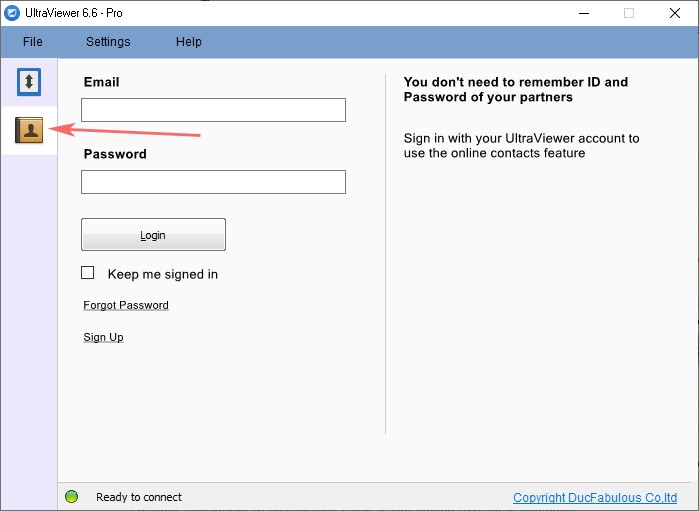 ### 4. Verifying the Installation
When UltraViewer opens, you’ll see a main window displaying your unique ID and a random password. This confirms that the installation was successful. Take a moment to familiarize yourself with the interface— the blue-themed design is intuitive, with clear labels for all key features. If you encounter any issues, such as the software getting stuck at “getting my ID,” ensure you downloaded the latest version and check your firewall settings to unblock port 2112 .
## Setting Up Your First Remote Connection
Now that you’ve completed the UltraViewer download and installation, it’s time to set up your first remote connection. UltraViewer uses a simple ID and password system to establish connections, making it easy to connect to any remote computer that also has UltraViewer installed.
### 1. Configuring the Remote Computer
If you’re connecting to a friend’s, family member’s, or colleague’s computer, ask them to complete the UltraViewer download and installation process on their device as well. Once installed, they should open UltraViewer and share their ID and password with you. This information is displayed prominently in the main window of the software.
For unattended access (accessing a computer without someone being present), the remote computer needs additional configuration:
- Open UltraViewer and go to “Settings” > “Options” > “Access.”
- Check the box next to “Run UltraViewer with Windows” to ensure the software starts automatically when the computer boots up .
- Set a custom password by clicking the golden key icon in the “Custom Password” section . This password will be used for all future connections, so choose something secure and memorable.
- Optional: Enable “Prevent Windows from going to sleep” to ensure the computer remains accessible even when idle.
### 2. Initiating the Connection from Your Computer
On your local computer, open UltraViewer and enter the remote computer’s ID and password in the “Control” section. Double-check the information to avoid typos, then click “Connect to Partner” to start the session.
The connection process usually takes a few seconds. Once established, you’ll see the remote computer’s screen displayed in a window on your local machine. You can now control the remote computer as if you were sitting in front of it—opening files, running programs, and navigating the desktop with your mouse and keyboard.
### 3. Navigating the Remote Control Interface
UltraViewer’s remote control interface includes several useful tools to enhance your experience:
- **Chat Panel**: Communicate with the remote user in real time using the built-in chat feature. This is especially helpful for providing instructions or troubleshooting .
- **File Transfer**: Drag and drop files between your local computer and the remote computer for quick and easy sharing .
- **Screen Capture**: Take screenshots of the remote screen or a specific portion of it by selecting “Screen” > “Capture Part of the Screen” .
- **Keystroke Commands**: Send special commands like Ctrl+Alt+Del by right-clicking in the chat panel and selecting “Keystroke” .
- **Display Settings**: Adjust the screen resolution or quality to reduce lag in low-bandwidth environments.
To end the connection, simply click the “X” button in the top-right corner of the remote control window or select “Disconnect” from the menu.
## Mastering Advanced UltraViewer Features
UltraViewer offers a range of advanced features that can take your remote access experience to the next level. These features are especially useful for business users, IT professionals, and anyone who needs to manage multiple remote computers.
### 1. Unattended Access and Remote Wake-Up
As mentioned earlier, unattended access allows you to connect to a computer without someone being present. This is ideal for managing servers, accessing home files while traveling, or providing ongoing technical support. To enhance this feature, UltraViewer 6.3.4 and later versions include a “Remote Wake-Up” function that lets you turn on a sleeping or hibernating computer remotely .
To use this feature:
- Ensure the remote computer has UltraViewer 6.3.4 or later installed (you may need to update via the official website if not).
- Go to “Settings” > “Options” > “Access” and check “Allow turn on computer remotely.”
- The remote computer will use its built-in wake timer to power on at scheduled intervals, allowing you to connect even if it’s not running 24/7 .
This feature saves energy by avoiding the need to leave the computer on constantly while still ensuring accessibility when needed.
### 2. Managing Multiple Remote Computers
If you need to monitor or control multiple computers (e.g., a team of remote workers or a network of office PCs), UltraViewer’s premium version offers multi-session support. With a premium license, you can manage an unlimited number of remote sessions simultaneously and use the address book feature to store IDs and passwords for frequently accessed computers .
To set up the address book:
- Go to “Tools” > “Address Book” and click “Add.”
- Enter the remote computer’s ID, a name for easy identification, and the custom password (if set up for unattended access).
- Save the entry, and you’ll be able to connect with a single click in the future.
This feature streamlines the process of managing multiple devices, saving you time and reducing the risk of entering incorrect IDs or passwords.
### 3. Enhancing Security with Advanced Settings
While UltraViewer is already secure by default, you can further protect your sessions with these advanced security settings:
- **Password Customization**: Adjust the length of the random password (from 4 to 8 characters) to improve security against brute-force attacks . You can also disable the random password entirely and use only your custom password for connections.
- **Blacklist Management**: Block unwanted connections by adding specific IDs to the blacklist. This is useful for preventing unauthorized access attempts.
- **SSL Encryption**: All UltraViewer sessions are fully SSL encrypted, but you can verify this by checking the padlock icon in the remote control window . This confirms that your data is protected from interception.
### 4. Troubleshooting Common Issues
Even with a smooth UltraViewer download and setup, you may encounter occasional issues. Here are solutions to some of the most common problems:
- **Stuck at “Getting My ID”**: This is usually caused by a network issue or firewall block. Ensure you’re using the latest version of UltraViewer, change the connection port to 2112 in “Settings” > “Options,” and disable any proxy settings .
- **Laggy Connection**: Reduce screen resolution or quality in the display settings, close unnecessary programs on both computers, and ensure a stable internet connection.
- **File Transfer Failures**: Check that both computers have sufficient storage space, disable antivirus software temporarily, and ensure the file path doesn’t contain special characters.
- **Unable to Send Ctrl+Alt+Del**: This feature requires both computers to be running UltraViewer 5.1 or later. Update the software on both devices and try again .
If you continue to experience issues, contact UltraViewer’s support team via email at support@ultraviewer.net for personalized assistance.
## UltraViewer vs. Alternatives: Why It’s the Best Choice in 2025
With so many remote desktop tools available, you may wonder why UltraViewer is the right choice. Let’s compare it to two popular alternatives: AnyDesk and TeamViewer.
### UltraViewer vs. AnyDesk
- **Cost**: UltraViewer is completely free for all users, while AnyDesk’s free version has time limits and is restricted to non-commercial use . Commercial users must purchase a license for AnyDesk.
- **Ease of Use**: UltraViewer has a more intuitive interface, making it easier for beginners to navigate. AnyDesk’s interface is slightly more complex and may require a learning curve .
- **Performance**: UltraViewer’s compression algorithm provides faster, smoother connections with less lag, especially in low-bandwidth environments .
- **Features**: UltraViewer includes unique features like smart chat prompts and remote wake-up, which AnyDesk lacks .
### UltraViewer vs. TeamViewer
- **Cost**: TeamViewer’s free version is limited to personal use, with strict commercial use restrictions. UltraViewer offers full functionality for both personal and commercial use without fees .
- **Installation**: UltraViewer is lightweight and installs quickly, while TeamViewer has a larger installation file and longer setup process.
- **Compatibility**: UltraViewer supports older Windows versions like XP and Vista, which TeamViewer no longer supports .
- **Accessibility**: UltraViewer’s 25-language support makes it more accessible to global users compared to TeamViewer’s limited language options .
In summary, UltraViewer offers a winning combination of cost-effectiveness, ease of use, and powerful features that make it superior to many alternatives in 2025. Whether you’re a casual user or a business professional, the software’s flexibility and reliability make it a top choice for remote access.
## Final Tips for Maximizing Your UltraViewer Experience
To get the most out of UltraViewer after your UltraViewer download and setup, keep these tips in mind:
- **Keep the Software Updated**: Regularly check for updates on the official website to access new features and security patches. The latest version (6.6) includes important bug fixes and performance improvements .
- **Customize the Interface**: Adjust the language, theme, and display settings to match your preferences. UltraViewer’s customizable interface ensures a comfortable user experience.
- **Use Keyboard Shortcuts**: Learn common shortcuts like Ctrl+F to full-screen the remote window, Ctrl+S to take a screenshot, and Ctrl+D to disconnect. These shortcuts save time and improve efficiency.
- **Backup Your Settings**: If you use UltraViewer on multiple computers, export your settings to a file and import them on other devices. This ensures consistency across your remote sessions.
Whether you’re using UltraViewer for personal use, technical support, or business management, this guide has covered everything you need to know—from the initial UltraViewer download to advanced features and troubleshooting. With its user-friendly design, robust security, and unlimited free functionality, UltraViewer is the ideal remote desktop solution for 2025 and beyond.
Ready to get started? Visit the official UltraViewer website today to complete your UltraViewer download and join millions of users who trust UltraViewer for their remote access needs.
# UltraViewer Download 2025: A Beginner-Friendly Guide to Remote Access, Monitoring, and Troubleshooting
In today’s digital world, the ability to access and control a computer remotely has become a necessity for many. Whether you’re working from home, helping a loved one with technical issues, or managing a team of remote employees, remote desktop software simplifies these tasks by eliminating the need for physical presence. Among the many options available, UltraViewer has emerged as a top choice for its simplicity, affordability, and robust feature set. This beginner-friendly guide will walk you through every step of the UltraViewer download process, show you how to set up remote access and monitoring, and help you troubleshoot common issues—all in plain, easy-to-understand language.
One of the biggest barriers to using remote desktop software is the fear of complexity. Many tools require advanced technical knowledge to set up, making them intimidating for beginners. UltraViewer changes this by offering a straightforward interface and intuitive controls that anyone can master. Add in the fact that it’s completely free with no hidden costs or session limits, and it’s no wonder why UltraViewer has become a favorite among casual users and professionals alike.
Whether you’re new to remote access or looking to switch from another tool, this guide will provide you with all the information you need to make the most of UltraViewer. From the initial UltraViewer download to advanced monitoring features, we’ll cover everything step by step, ensuring you feel confident using the software from day one.
## Why UltraViewer Is the Top Choice for Beginners in 2025
Before we dive into the UltraViewer download and setup, let’s explore why this software is perfect for beginners. Here are the key reasons why UltraViewer stands out from other remote desktop tools:
### 2. User-Friendly
### 4. Verifying the Installation
When UltraViewer opens, you’ll see a main window displaying your unique ID and a random password. This confirms that the installation was successful. Take a moment to familiarize yourself with the interface— the blue-themed design is intuitive, with clear labels for all key features. If you encounter any issues, such as the software getting stuck at “getting my ID,” ensure you downloaded the latest version and check your firewall settings to unblock port 2112 .
## Setting Up Your First Remote Connection
Now that you’ve completed the UltraViewer download and installation, it’s time to set up your first remote connection. UltraViewer uses a simple ID and password system to establish connections, making it easy to connect to any remote computer that also has UltraViewer installed.
### 1. Configuring the Remote Computer
If you’re connecting to a friend’s, family member’s, or colleague’s computer, ask them to complete the UltraViewer download and installation process on their device as well. Once installed, they should open UltraViewer and share their ID and password with you. This information is displayed prominently in the main window of the software.
For unattended access (accessing a computer without someone being present), the remote computer needs additional configuration:
- Open UltraViewer and go to “Settings” > “Options” > “Access.”
- Check the box next to “Run UltraViewer with Windows” to ensure the software starts automatically when the computer boots up .
- Set a custom password by clicking the golden key icon in the “Custom Password” section . This password will be used for all future connections, so choose something secure and memorable.
- Optional: Enable “Prevent Windows from going to sleep” to ensure the computer remains accessible even when idle.
### 2. Initiating the Connection from Your Computer
On your local computer, open UltraViewer and enter the remote computer’s ID and password in the “Control” section. Double-check the information to avoid typos, then click “Connect to Partner” to start the session.
The connection process usually takes a few seconds. Once established, you’ll see the remote computer’s screen displayed in a window on your local machine. You can now control the remote computer as if you were sitting in front of it—opening files, running programs, and navigating the desktop with your mouse and keyboard.
### 3. Navigating the Remote Control Interface
UltraViewer’s remote control interface includes several useful tools to enhance your experience:
- **Chat Panel**: Communicate with the remote user in real time using the built-in chat feature. This is especially helpful for providing instructions or troubleshooting .
- **File Transfer**: Drag and drop files between your local computer and the remote computer for quick and easy sharing .
- **Screen Capture**: Take screenshots of the remote screen or a specific portion of it by selecting “Screen” > “Capture Part of the Screen” .
- **Keystroke Commands**: Send special commands like Ctrl+Alt+Del by right-clicking in the chat panel and selecting “Keystroke” .
- **Display Settings**: Adjust the screen resolution or quality to reduce lag in low-bandwidth environments.
To end the connection, simply click the “X” button in the top-right corner of the remote control window or select “Disconnect” from the menu.
## Mastering Advanced UltraViewer Features
UltraViewer offers a range of advanced features that can take your remote access experience to the next level. These features are especially useful for business users, IT professionals, and anyone who needs to manage multiple remote computers.
### 1. Unattended Access and Remote Wake-Up
As mentioned earlier, unattended access allows you to connect to a computer without someone being present. This is ideal for managing servers, accessing home files while traveling, or providing ongoing technical support. To enhance this feature, UltraViewer 6.3.4 and later versions include a “Remote Wake-Up” function that lets you turn on a sleeping or hibernating computer remotely .
To use this feature:
- Ensure the remote computer has UltraViewer 6.3.4 or later installed (you may need to update via the official website if not).
- Go to “Settings” > “Options” > “Access” and check “Allow turn on computer remotely.”
- The remote computer will use its built-in wake timer to power on at scheduled intervals, allowing you to connect even if it’s not running 24/7 .
This feature saves energy by avoiding the need to leave the computer on constantly while still ensuring accessibility when needed.
### 2. Managing Multiple Remote Computers
If you need to monitor or control multiple computers (e.g., a team of remote workers or a network of office PCs), UltraViewer’s premium version offers multi-session support. With a premium license, you can manage an unlimited number of remote sessions simultaneously and use the address book feature to store IDs and passwords for frequently accessed computers .
To set up the address book:
- Go to “Tools” > “Address Book” and click “Add.”
- Enter the remote computer’s ID, a name for easy identification, and the custom password (if set up for unattended access).
- Save the entry, and you’ll be able to connect with a single click in the future.
This feature streamlines the process of managing multiple devices, saving you time and reducing the risk of entering incorrect IDs or passwords.
### 3. Enhancing Security with Advanced Settings
While UltraViewer is already secure by default, you can further protect your sessions with these advanced security settings:
- **Password Customization**: Adjust the length of the random password (from 4 to 8 characters) to improve security against brute-force attacks . You can also disable the random password entirely and use only your custom password for connections.
- **Blacklist Management**: Block unwanted connections by adding specific IDs to the blacklist. This is useful for preventing unauthorized access attempts.
- **SSL Encryption**: All UltraViewer sessions are fully SSL encrypted, but you can verify this by checking the padlock icon in the remote control window . This confirms that your data is protected from interception.
### 4. Troubleshooting Common Issues
Even with a smooth UltraViewer download and setup, you may encounter occasional issues. Here are solutions to some of the most common problems:
- **Stuck at “Getting My ID”**: This is usually caused by a network issue or firewall block. Ensure you’re using the latest version of UltraViewer, change the connection port to 2112 in “Settings” > “Options,” and disable any proxy settings .
- **Laggy Connection**: Reduce screen resolution or quality in the display settings, close unnecessary programs on both computers, and ensure a stable internet connection.
- **File Transfer Failures**: Check that both computers have sufficient storage space, disable antivirus software temporarily, and ensure the file path doesn’t contain special characters.
- **Unable to Send Ctrl+Alt+Del**: This feature requires both computers to be running UltraViewer 5.1 or later. Update the software on both devices and try again .
If you continue to experience issues, contact UltraViewer’s support team via email at support@ultraviewer.net for personalized assistance.
## UltraViewer vs. Alternatives: Why It’s the Best Choice in 2025
With so many remote desktop tools available, you may wonder why UltraViewer is the right choice. Let’s compare it to two popular alternatives: AnyDesk and TeamViewer.
### UltraViewer vs. AnyDesk
- **Cost**: UltraViewer is completely free for all users, while AnyDesk’s free version has time limits and is restricted to non-commercial use . Commercial users must purchase a license for AnyDesk.
- **Ease of Use**: UltraViewer has a more intuitive interface, making it easier for beginners to navigate. AnyDesk’s interface is slightly more complex and may require a learning curve .
- **Performance**: UltraViewer’s compression algorithm provides faster, smoother connections with less lag, especially in low-bandwidth environments .
- **Features**: UltraViewer includes unique features like smart chat prompts and remote wake-up, which AnyDesk lacks .
### UltraViewer vs. TeamViewer
- **Cost**: TeamViewer’s free version is limited to personal use, with strict commercial use restrictions. UltraViewer offers full functionality for both personal and commercial use without fees .
- **Installation**: UltraViewer is lightweight and installs quickly, while TeamViewer has a larger installation file and longer setup process.
- **Compatibility**: UltraViewer supports older Windows versions like XP and Vista, which TeamViewer no longer supports .
- **Accessibility**: UltraViewer’s 25-language support makes it more accessible to global users compared to TeamViewer’s limited language options .
In summary, UltraViewer offers a winning combination of cost-effectiveness, ease of use, and powerful features that make it superior to many alternatives in 2025. Whether you’re a casual user or a business professional, the software’s flexibility and reliability make it a top choice for remote access.
## Final Tips for Maximizing Your UltraViewer Experience
To get the most out of UltraViewer after your UltraViewer download and setup, keep these tips in mind:
- **Keep the Software Updated**: Regularly check for updates on the official website to access new features and security patches. The latest version (6.6) includes important bug fixes and performance improvements .
- **Customize the Interface**: Adjust the language, theme, and display settings to match your preferences. UltraViewer’s customizable interface ensures a comfortable user experience.
- **Use Keyboard Shortcuts**: Learn common shortcuts like Ctrl+F to full-screen the remote window, Ctrl+S to take a screenshot, and Ctrl+D to disconnect. These shortcuts save time and improve efficiency.
- **Backup Your Settings**: If you use UltraViewer on multiple computers, export your settings to a file and import them on other devices. This ensures consistency across your remote sessions.
Whether you’re using UltraViewer for personal use, technical support, or business management, this guide has covered everything you need to know—from the initial UltraViewer download to advanced features and troubleshooting. With its user-friendly design, robust security, and unlimited free functionality, UltraViewer is the ideal remote desktop solution for 2025 and beyond.
Ready to get started? Visit the official UltraViewer website today to complete your UltraViewer download and join millions of users who trust UltraViewer for their remote access needs.
# UltraViewer Download 2025: A Beginner-Friendly Guide to Remote Access, Monitoring, and Troubleshooting
In today’s digital world, the ability to access and control a computer remotely has become a necessity for many. Whether you’re working from home, helping a loved one with technical issues, or managing a team of remote employees, remote desktop software simplifies these tasks by eliminating the need for physical presence. Among the many options available, UltraViewer has emerged as a top choice for its simplicity, affordability, and robust feature set. This beginner-friendly guide will walk you through every step of the UltraViewer download process, show you how to set up remote access and monitoring, and help you troubleshoot common issues—all in plain, easy-to-understand language.
One of the biggest barriers to using remote desktop software is the fear of complexity. Many tools require advanced technical knowledge to set up, making them intimidating for beginners. UltraViewer changes this by offering a straightforward interface and intuitive controls that anyone can master. Add in the fact that it’s completely free with no hidden costs or session limits, and it’s no wonder why UltraViewer has become a favorite among casual users and professionals alike.
Whether you’re new to remote access or looking to switch from another tool, this guide will provide you with all the information you need to make the most of UltraViewer. From the initial UltraViewer download to advanced monitoring features, we’ll cover everything step by step, ensuring you feel confident using the software from day one.
## Why UltraViewer Is the Top Choice for Beginners in 2025
Before we dive into the UltraViewer download and setup, let’s explore why this software is perfect for beginners. Here are the key reasons why UltraViewer stands out from other remote desktop tools:
### 2. User-Friendly
1412
The Complete 2025 UltraViewer Tutorial: From UltraViewer Download to Advanced Remote Control Mastery
关于UltraViewer
UltraViewer 由 DucFabulous 研发科技有限公司匠心打造!我们深耕技术创新,致力于引领全球远程控制领域发展,更以优质产品为核心,为你提升生活品质,带来极致使用体验。
产品介绍
联系我们
- +84 391.258.888
- suppor@pm.me
- sales@pm.me
- TeporR pmme
跟着我们


通讯
注册
我们的客户
合作伙伴



@ Copyright UltraViewer 2025 | 保留所有权利。 TM